
7 Free Chrome Extensions That Actually Save Time (2025)
In a fast, distraction-heavy web, small tools make a big difference. This guide highlights the best free Chrome extensions for productivity—easy to install, beginner-friendly, and proven to cut busywork so you can focus.
⏱ Introduction: Why Productivity Tools Matter
Every second counts—whether you’re a busy professional, remote worker, student, or solo creator. The right extensions remove repetitive clicks, reduce context switching, and protect your focus. Below are seven free picks that can save hours each week.
🛠 1) Toby — Tab Manager for the Chronically Tab-Overloaded
Organizes tabs into visual boards; one-click restore; reduces RAM usage.
No true mobile companion.
Researchers, remote workers, and anyone drowning in tabs.
Quick win: Create collections by project (e.g., “Client A,” “Thesis,” “Taxes”) and close everything else—instant calm.
🎥 2) Loom — Instant Video Recorder

One-click capture; instant share link; replaces long emails.
Free plan has limited storage.
Managers, support reps, and remote teams explaining tasks fast.
Quick win: Record a 90-second walkthrough instead of writing a 500-word SOP.
🧾 3) Scribe — Auto-Generate How-To Guides

Captures workflows in the background; exports clean, readable guides.
Free version limits advanced editing.
Onboarding, training, and process documentation.
Quick win: Record once, reuse forever—share a link with new hires or clients.
📋 4) Clipboard History Pro — Smarter Copy & Paste

Find old copies; pin templates; speed up repetitive text.
May request permissions depending on your settings.
Writers, marketers, coders, and heavy clipboard users.
Quick win: Save your most-used replies (support macros, email intros, UTM tags) as pinned items.
🌙 5) Dark Reader — Eye-Friendly Browsing
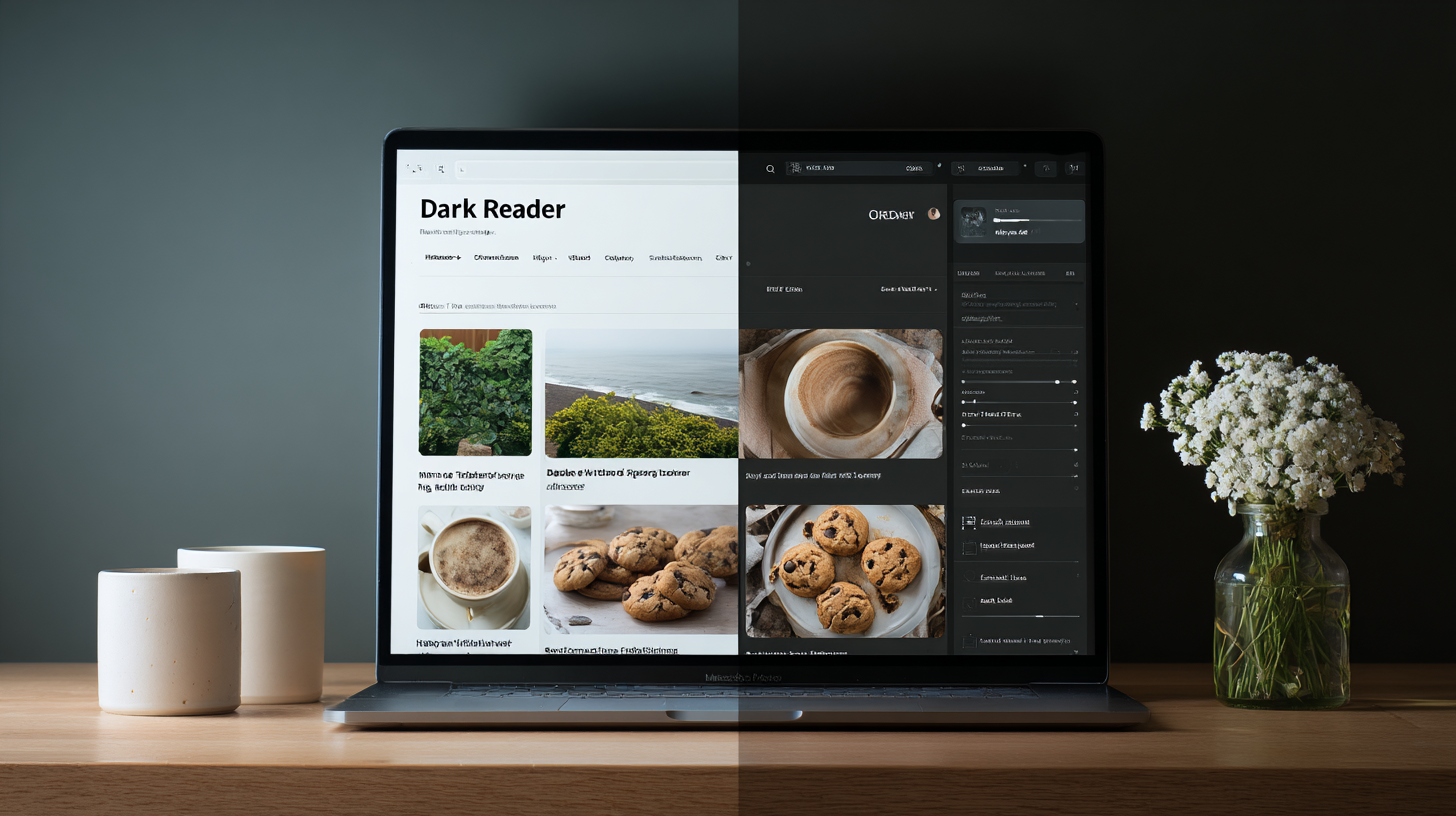
Dark mode for every site; custom controls; reduces eye strain at night.
May slightly slow heavy pages.
Students, night-owls, and anyone working late.
Quick win: Set a schedule (sunset → sunrise) so it auto-toggles without thinking.
📂 6) OneTab — Declutter with One Click

Instantly reduces CPU/memory; restore when needed.
No true folder-level organization.
Researchers and anyone prepping a big project.
Quick win: Use before meetings to save your current session, then reopen only what’s relevant.
⏳ 7) StayFocusd — Beat Digital Distractions

Site limits by day/hour; focus boosts; simple to configure.
You can override rules if you’re not strict.
Students and professionals who need a digital timeout.
Quick win: Set a 15-minute daily allowance for social feeds and keep deep-work windows clean.

🔗 Bonus Tips: Make These Extensions Work Together
- Stack wisely: StayFocusd + OneTab for focus; Toby for project-based reopen.
- Use hotkeys: Assign keyboard shortcuts for Loom capture, Toby open, and Clipboard paste.
- Audit quarterly: Remove anything you haven’t used in 90 days to keep Chrome fast.
📥 Final Thoughts: Small Tools, Big Time Savings
If you’re constantly switching tabs, rewriting the same emails, or fighting distractions, upgrade your browser workflow. These Chrome extensions for productivity are simple changes that compound into hours saved each week.
Pro tip: Start with two or three tools and add only what you need. Less is more for long-term productivity.


